
A phishing attack can start out seeming completely innocent: An email, text, social media DM or notification that asks you to “verify your account.” But behind that innocent-seeming button could be a fake login page, malware, a credential-harvesting system, or a well-done social engineering operation. What happens when you open a phishing link? In The Complete Attack Explained, we take you through everything that can happen from the moment you click on a dodgy link through to the probable loss of passwords, personal information, money, or access to your accounts.
What’s important to note is that clicking on a Phishing Link does not automatically mean your device is compromised. What happens next depends on where the link goes to , what security is in place , whether you type anything in , if you download anything , if you give any access , if the attacker can exploit a weakness .
What Is A Phishing Link?
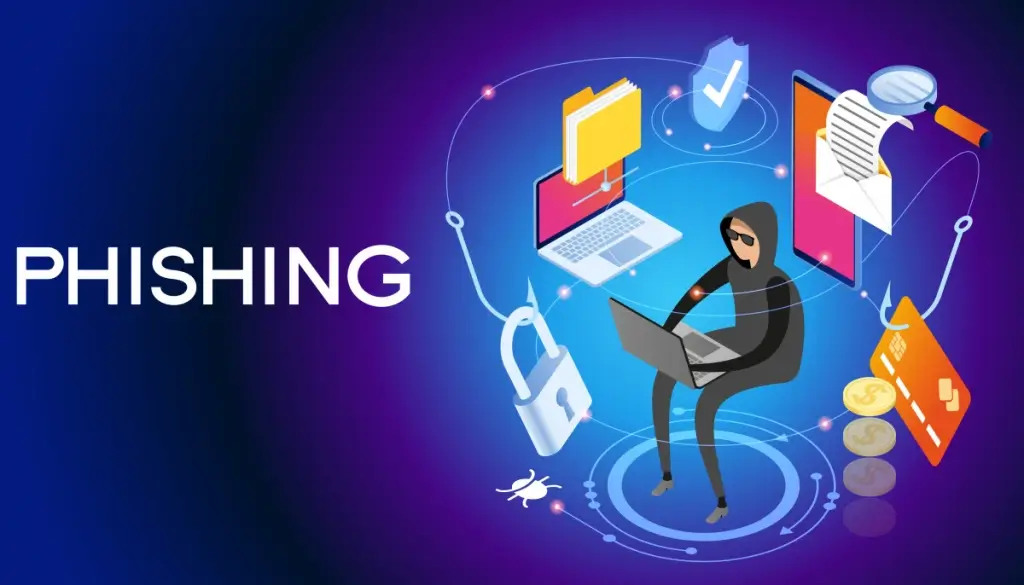
A phishing link is a harmful or fraudulent URL that convinces a person into clicking it, which takes them to a fake website, downloads malicious malware, surrenders personal information or does an action that benefits an attacker.
The link may show up in:
- Emails
- Text messages
- WhatsApp texts
- Social media posts
- Deceptive advertisements
- Calendar invites.
- Collaboration tools.
- False Delivery Notes
- Account security alerts
- QR codes
For example, you may get a notice stating your bank account has been temporarily frozen. The mail has a “Phishing Link” that is supposed to allow you authenticate your identity.
The webpage may look nearly comparable to the real banking website. But if you do input your username and password, you can be giving those credentials directly to the attacker.
Phishing is when users are tricked into clicking dangerous links, downloading malicious software or giving sensitive information using messages that look like they came from a trusted source, NIST says.
What Happens When You Click A Phishing Link?
Clicking a Phishing Link can lead to various distinct steps. Not every attack follows every stage, but understanding the general procedure helps in identifying and responding to an attack.
1. The Link Takes You to an Attacker-Controlled Destination
If you click a Phishing Link, your browser will try to connect to the URL in the message.
The destination may be:
- A fake login page
- A malicious website
- A legitimate website being abused by attackers
- A redirector
- A malware-download page
- A credential-harvesting page
- A page designed to steal payment information
Attackers may also employ URL shortening services or repeated redirects to hide the final destination.
OWASP advises that redirection that are not properly checked can be used to send users from a website that looks to be trusted to a phishing location controlled by an attacker.
2. Security Tools May Detect the Threat
Various levels of security can verify the URL before the malicious website is fully loaded.
Depending on your organization and your device, these may include:
- Browser security
- Email filtering
- DNS filtering
- Endpoint security
- Antivirus software
- Web protection
- Safe Browsing services
- Corporate security gateways
For example, Google Safe Browsing analyses URLs against the lists of hazardous resources, which are continually updated and include phishing and fraudulent sites. Chrome has the ability to warn you about harmful sites before you go there.
Similarly, Microsoft Defender may scan links against known risky websites and notify users if they are about to visit a malicious destination.
So clicking a Phishing Link might only take you to a warning page rather than a real attack .
3. You May See a Fake Website
If the destination is not blocked by the security systems, the website can load normally.
This is how many phishing attacks become plausible.
A fake website may copy:
- Logos
- Colors
- Fonts
- Login forms
- Navigation menus
- Security messages
- Customer-support information
The idea is to make you think you are visiting the actual service.
For example, a fake Microsoft 365 login page could ask for your work email address and password. Once the credentials are input, they can be sent to the attacker.
Phishing attempts often seek to obtain usernames, passwords, financial information and other credentials through messages and websites that impersonate reputable organisations, Microsoft says.
4. The Attacker May Try to Steal Your Credentials
And that is one of the most prevalent effects of a Phishing Link.
Say you click on a link that says:
“Your account is currently in need of verification.”
You get to a page that appears real and you type in:
- Email address
- Password
- Phone number
- Security answer
- One-time code
The attacker may have this information immediately available.
The risk increases when consumers share passwords across several websites. If a password is stolen from one service it could allow access to another account.
That’s why it is so crucial to use unique passwords and multi-factor authentication.
Microsoft advocates robust and multifactor authentication as a way to reduce the danger of phishing.
5. Attackers May Attempt to Steal Session Information
Modern phishing attempts are not necessarily password dependent.
Some clever attacks try to steal authentication information linked with an ongoing session.
If successful, an attacker could attempt to utilise stolen session information to access an account without simply knowing the user’s password.
Therefore, you’ll see more and more organisations deploy phishing-resistant authentication and look for anomalous sign-in activity.
This means that even if the victim has multifactor authentication and thinks that they are secured, a Phishing Link might still be hazardous.
6. The Link May Attempt to Download Malware
Not all phishing campaigns involve passwords.
A Phishing Link may lead to a website that encourages you to download:
- Fake browser updates
- Malicious applications
- Documents
- Browser extensions
- Remote-access software
- Other unwanted programs
It’s a lot worse if you download and run malicious software.
CISA says phishing efforts can employ malicious websites or links to infect systems with malware and steal personal or financial information.
7. The Attacker May Try to Exploit a Software Vulnerability
For more sophisticated assaults, just viewing a bad website could be part of an attempt to exploit a vulnerability in a browser, operating system, plug-in or other application.
This is a far more sophisticated sort of assault than a simple phoney login fraud.
Keeping your:
- Browser
- Operating system
- Applications
- Security software
Updated limits exposure to known exploits.
But current browsers and operating systems have numerous layers of security defences, and simply visiting a rogue website doesn’t indicate an exploit will be successful.
What If You Clicked The Link But Did Not Enter Anything?
This is a crucial difference.
If you clicked on a Phishing Link but quickly closed the page and did NOT:
- Enter your password
- Submit personal information
- Download a file
- Install software
- Grant permissions
- Enter payment details
But the situation should still be taken seriously.
Check if:
- Your browser has downloaded something.
- Your device is putting out strange alerts.
- You entered any credentials.
- You installed whatever.
- We noticed some odd behaviour on your account.
- The website asked for permissions.
- Whatever your security software picked up.
If you typed a password, change it right away from the actual website or app, not from the Phishing Link.
What If You Entered Your Password?
If you put your credentials into a shady website, act fast.
Change the Password
Go straight to the legit site and change the password.
Don’t go back to that strange page.
Enable MFA
If it isn’t already enabled, activate multifactor authentication.
Check Account Activity
Look for:
- Unknown login locations
- New devices
- Password changes
- Recovery-email changes
- New forwarding rules
- Suspicious transactions
- Change Reused Passwords
If you’ve used the same password elsewhere else, change those accounts as well.
Report the Attack
Report the message to your email provider, organization, bank, social media site, or security team.
Real Example
1. CISA Red-Team Phishing Exercise
Phishing links are not only a theoretical problem.
In a CISA red-team exercise, security testers utilised spearphishing emails with links to a red-team controlled website to gain access to an organization’s systems. The exercise demonstrates how an apparently benign link can become an initial access point in a broader attack chain.
The lesson to be learned here is that a Phishing Link does not necessarily constitute the complete attack. It can be the first step to give attackers access and then they can try other activities.
2: Dyre Banking Malware Campaign
A recorded Dyre banking-malware campaign used phishing communications as a point of entry. The malware could be harvesting credentials for internet services, including banking services, CISA said.
This scenario illustrates why phishing is more than “don’t click on suspicious emails.”
A successful phishing effort might escalate from:
Message → Link/Attachment → Malware → Credential Theft → Account/Financial Impact
Each attack is different yet the initial deception can be the essential beginning point.
How To Identify A Phishing Link?
Watch for red flags before you click on a dodgy Phishing Link.
Check the Sender
Does the sender’s address actually belong to the organization?
Inspect the URL
Look carefully for:
- Misspelled domains
- Extra words
- Strange subdomains
- Unusual characters
- URL shorteners
- Suspicious domains
- Watch for Urgency
Messages that are to:
- “Act immediately”
- “Your account will be deleted”
- “Payment failed”
- “Verify within 10 minutes”
are popular social engineering strategies.
Don’t Trust Logos
And a professional logo doesn’t guarantee a genuine message.
Verify Independently
Never click the Phishing Link, instead access the official website of the organization or its official application manually.
NIST particularly recommends that urgent requests should be verified independently using contact information known to the requester rather than the contact information in the suspicious message.
How Security Companies Protect You From Phishing Links?
Modern security systems employ numerous levels to detect and prevent dangerous URLs.
Google Safe Browsing
Google Safe Browsing helps to detect problematic websites and can show warnings to users before they visit known unsafe places.
Microsoft Defender
Web protection in Microsoft Defender scans links and can alert users when they are visiting known harmful websites.
Microsoft Safe Links
When a user clicks a URL, Microsoft Defender for Office 365 checks it to help protect users against dangerous links in email, Teams, and compatible Office applications.
These technologies highlight the need for multilayer security. No one protective mechanism may be considered a flawless one.
How To Protect Yourself From Phishing Links?
Develop these practical habits:
- Don’t click on unexpected links!
- Confirm the sender independently.
- Be sure to check the domain.
- Turn on multi-factor authentication.
- Use unique passphrases.
- Please upgrade your browser and operating system.
- Enable browser security protections
- Use good security software.
- Avoid downloading files you weren’t expecting.
- Notify about questionable messages
- Review account activity following questionable conversations.
- Change your compromised passwords now.
Awareness, strong authentication, current software and layered security controls make the strongest protection against a Phishing Link.
What Happens When You Click On A Phishing Link?
The outcome of a phishing link can be drastically different.
Click → Security Check → Website/Redirect → Fake Login or Download → Information Theft or Malware → Account/Financial Impact
But the chain is not guaranteed to work.
And you . Your browser , your email provider , your security software , your authentication system , can block the attack at multiple points .
The most essential thing is to not panic if you mistakenly click a Phishing Link. Close the page Do not submit any info Check for downloads Scan your device if appropriate Secure any account that may have had credentials exposed
Final Thoughts
A phishing link can be the start of a simple scam or the initial stage in a much broader cyber attack. The attacker might attempt to steal passwords, seize important information, transmit malware or access online accounts.
The good news is, clicking a Phishing Link doesn’t automatically imply you’ve been hacked. Security alerts, built-in browser defences, multifactor authentication, up-to-date software, and cautious user behaviour can all block the assault at several points. The safest thing is simple: stop, check, and don’t send important information merely because a message asks you to act fast.
Frequently Asked Questions
1. What happens when you click on a phishing link?
Your browser is trying to connect to the destination. Security systems may scan the URL and then either block it, issue a warning, redirect you, or allow the website to load. What happens next depends on the attack and your security safeguards.
2. Phishing link on click hack my phone?
Clicking a Phishing Link does not automatically imply your phone has been compromised. But a malevolent site could try to steal credentials, deliver unwanted downloads or scams, or exploit software flaws. Keep your phone and browser updated to lower risk.
3. What do I do if I clicked on a phishing link?
Close the page. Do not enter any more information. Check to see if anything downloaded. Perform proper security checks and verify your accounts for any unusual activity. If you entered a password, update it immediately via the legitimate service.
4. Can you get a password from a phishing link?
Yes. One popular phishing tactic is directing victims to a bogus login page that steals usernames and passwords. The attackers may then try to use those credentials to access accounts.
5. Can antivirus software block phishing links?
Many harmful websites and downloads can be detected and blocked by security software, however no security program detects every threat. Google Safe Browsing, Microsoft Defender, email security systems and other technologies add additional layers of protection here.
Try Our Cybersecurity Tools
Wanna learn and get better at your digital security? Try out our resources on the ExplainMeTech Tools Page. You will learn about useful tech and cybersecurity tools that streamline routine security activities, learn technical concepts, and increase your awareness of online-security.
References
- NIST — Phishing: Guidance on identifying and protecting against phishing attacks. NIST Phishing Guidance
- OWASP — Unvalidated Redirects and Forwards Cheat Sheet: Explains how unsafe redirects can be abused in phishing attacks. OWASP Unvalidated Redirects and Forwards
- Microsoft Security — Phishing Protection: Guidance on phishing prevention, authentication, and organizational protection. Microsoft Phishing Protection
- Google Safe Browsing: Information about protection against phishing, deceptive websites, and malicious downloads. Google Safe Browsing
- Microsoft Learn — Safe Links: Technical information about URL scanning and time-of-click protection. Microsoft Defender Safe Links
For more useful information on technology, cybersecurity and digital security, visit ExplainMeTech.com and check out our latest guides, tools and insights.