
Wireshark is one of the most popular tools for network traffic analysis, debugging connectivity difficulties and studying the inner workings of network protocols. Wireshark Explained Packets capture, analysis, filters, protocols and troubleshooting strategies Packets capture, analysis, filters, protocols and troubleshooting techniques provides a practical introduction to packet capture, packet analysis, filters, protocols and common troubleshooting procedures.
As a cybersecurity student, network administrator, IT professional, or a novice in ethical hacking, learning Wireshark packet analysis can help you analyse what is happening across a network. Wireshark can capture traffic on a given network interface and show individual packets with complete protocol information. The official Wireshark documentation states that the software provides a graphical interface for capturing, viewing, filtering, and analysing packets.
What Is Wireshark?

Wireshark is an open-source network protocol analyser that captures and inspects packets on a network. It can work with live network traffic or previously saved capture files like PCAP and PCAPNG files.
A network packet is information that helps devices talk. Packet information may comprise source and destination addresses, ports, protocol details, flags, sequence numbers and other fields depending on the protocol.
Wireshark network analysis lets you see this information very in detail. It might be helpful for diagnosing: Slow connections Packet loss Failed TCP connections DNS difficulties Application errors Unusual network behaviour
One of the generally available tools for capturing and analysing network data is Wireshark, according to NIST.
Why Is Wireshark Used?
Applications of Wireshark include networking, cybersecurity, system administration and teaching.
Typical uses include:
- Troubleshooting network connectivity
- Investigating packet loss
- Analyzing TCP connections
- Examining DNS traffic
- Studying HTTP and HTTPS communication
- Identifying network protocols
- Investigating suspicious network activity
- Learning how network protocols work
- Analyzing PCAP files
- Diagnosing application connectivity problems
For example, Microsoft recommends gathering network packet captures for examining some TCP/IP connectivity difficulties. Packet captures can help identify problematic TCP connections, retransmissions, resets, and other network behaviour.
How Does Wireshark Work?
Wireshark captures packets via a network interface. This could be an Ethernet adapter, Wi-Fi adapter, or any other supported interface.
Start Wireshark and it will tell you what interfaces are available. Interfaces that are actively transferring traffic usually indicate activity, which can assist you identify the interface to capture.
Once you choose an interface, you can start a capture. As communication on the network starts, packets will begin to appear in the packet list.
There are often many places in the Wireshark interface where packet information can be shown. Summary is shown in the packet list Protocol fields are shown in the packet details section Underlying packet data is shown in the packet bytes section
How To Capture Packets In Wireshark?
Packet capturing is easy, but you only want to capture communications you are allowed to inspect.
Step 1: Install Wireshark
Download Wireshark from the official page and install it. The installation may additionally install the required packet-capture components depending on the operating system.
Step 2: Open Wireshark
Start Wireshark and look at the available network interfaces.
You might find interfaces like:
- Wi-Fi
- Ethernet
- Loopback
- VPN interfaces
- Virtual network adapters
Pick the interface that’s running the traffic you want to inspect.
Step 3: Start the Capture
Double-click the right interface or use the capture controls to start capturing packets.
If the interface is up, you’ll witness constant flow of packets.
Step 4: Reproduce the Problem
When diagnosing a problem, recreate it while Wireshark is recording traffic.
For example, if a website doesn’t load, start the capture, try to visit the website, note the traffic it generates and terminate the capture.
Microsoft also writes about taking Wireshark captures while trying to reproduce connectivity issues and preserving the traces for study.
Step 5: Stop and Save
Once you’ve collected enough traffic, stop the capture.
You can save the capture as a PCAPNG. You can save the capture and then re-open it later for analysis.
Understanding Packets In Wireshark
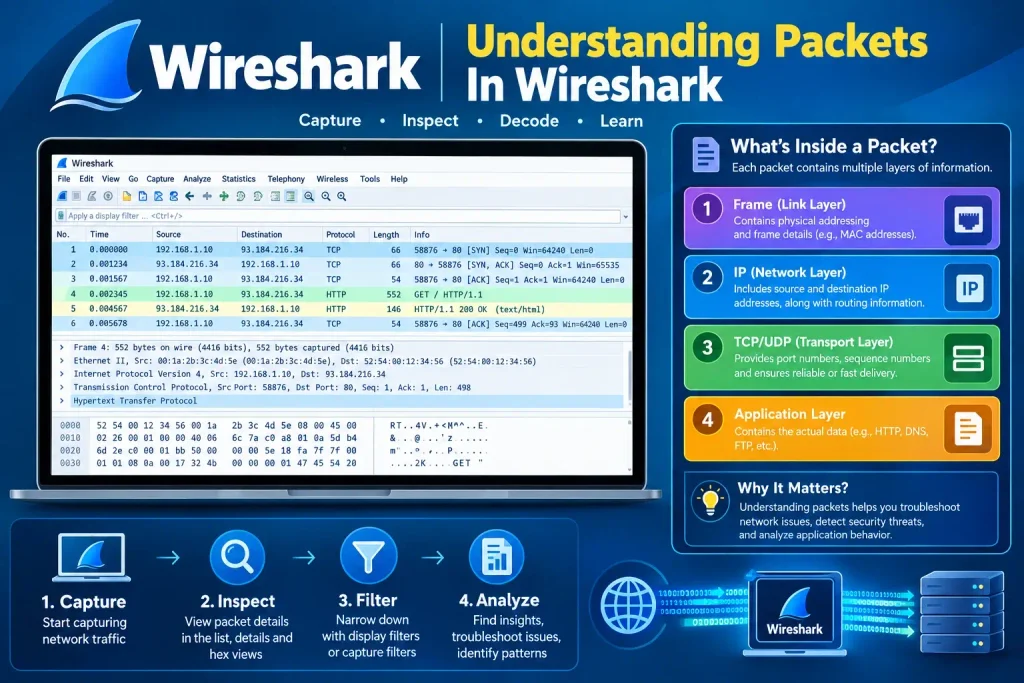
To a newcomer it can be confusing at first, with thousands of packets. The important thing is to understand the information presented for each packet.
The important fields are:
Time: Displays the time the packet was captured.
Source: Identifies the source of the packet.
Destination: This tells us where the packet is headed.
Protocol: Specifies the protocol related to the packet.
Length: Shows the size of the packet.
Info: Brief description of the packet.
Choosing a packet brings up more info about protocols and fields.
For example, clicking on a TCP packet might show details like source and destination ports, sequence numbers, acknowledgement numbers, TCP flags and other data.
Wireshark Display Filters
Filtering is one of the most significant functions of Wireshark packet analysis.
A capture can have dozens or millions of packets. Display filters enable you to narrow down to traffic relevant to your study.
For example:
tcp
That shows TCP packets.
udp
You can see UDP packets .
dns
This is the DNS traffic.
icmp
This is showing ICMP traffic.
http
This will display HTTP traffic, if used.
You can also filter by an IP address:
ip.addr == 192.168.1.10
Or filter by a specified TCP port:
tcp.port == 443
Wireshark differentiates between capture filters and display filters. Capture filters limit the traffic during the capture and display filters decide which packets that have previously been captured are to be displayed.
Capture Filters Vs Display Filters
This is a crucial distinction for the newbie.
The first is a capture filter . This determines which packets are collected. It can reduce the amount of traffic gathered.
The display filter is applied after the packets are captured. It hides any packets that do not match your filter criteria, but does not delete them from the capture.
For example, Wireshark documentation has display-filter syntax like:
ip.addr == 192.168.0.1
This can reveal packets related to a specific IP address.
Using filters correctly will make your Wireshark network analysis go more faster and easier.
How To Analyze TCP Traffic?
TCP is one of the most useful protocol to learn when learning Wireshark.
A normal TCP connection begins with a three-way handshake:
SYN
SYN-ACK
ACK
This prepares the TCP connection for standard data transfer.
When analyzing a TCP problem, look for:
- Retransmissions
- Duplicate acknowledgments
- TCP resets
- Connection timeouts
- Unexpected delays
- Missing responses
- Incorrect sequence behavior
For example, repeated retransmissions may be an indication that acknowledgements are not coming back as intended. According to Microsoft documentation, packet captures are valuable in discovering retransmissions and TCP level connectivity difficulties.
Analyzing DNS Traffic
DNS translates domain names to IP addresses.
If a user types in a web URL, the device might have to do a DNS lookup before it connects to the target server.
You may filter DNS traffic with Wireshark using:
dns
Then you may look at DNS queries and answers.
DNS analysis can assist detect problems such as unsuccessful queries, strange replies, delays, or connection with unusual DNS servers.
Analyzing HTTP And HTTPS
Wireshark can detect network protocols and provide metadata about the communications.
HTTP traffic sent without encryption can potentially expose application-level information. HTTPS, in contrast, encrypts application data throughout the transmission.
This means that capturing HTTPS packets does not usually give the same insight into the plaintext application content as capturing unencrypted HTTP traffic.
Security practitioners should also be aware that packet captures may contain sensitive information like as addresses, IDs, metadata and possibly exposed application data. Wireshark is explicitly mentioned in OWASP’s Mobile Application Security assessment Guide, including assessment of network traffic captures for undeclared personally identifiable information.
Using Wireshark For Network Troubleshooting
Wireshark is particularly beneficial when the usual debugging tools don’t explain the situation.
What if an application cannot connect to a server? You could record the communication and check if:
- DNS resolution succeeds
- The TCP handshake completes
- The server responds
- Packets are retransmitted
- A TCP reset occurs
- The connection experiences unusual delays
- The expected destination and port are being contacted
Microsoft suggests packet captures for troubleshooting a broad spectrum of TCP/IP connectivity problems . Comparison of captures from the client and server can also help to determine where the communication is breaking down.
Wireshark And Cybersecurity

Wireshark also has value in teaching cybersecurity and in defensive analysis.
Packet analysis can be used to help security teams analyse network behaviour and examine questionable communications. Collecting and analysing packet captures should be done, however, in accordance with company rules, privacy standards and applicable legislation.
A capture may comprise usernames, IP addresses, application data, session information and other sensitive information. So PCAP files are similar to other important security files and they should be secured.
The value of collecting and analysing network information to understand network behaviour and cybersecurity risks is underscored by NIST’s study on network traffic analysis.
Common Wireshark Filters For Beginners
Here are some good filters to practice with:
| Purpose | Wireshark Filter |
| TCP traffic | tcp |
| UDP traffic | udp |
| DNS traffic | dns |
| ICMP traffic | icmp |
| Specific IP | ip.addr == 192.168.1.10 |
| TCP port | tcp.port == 443 |
| HTTP requests | http.request |
| TCP SYN packets | tcp.flags.syn == 1 |
The actual traffic observed relies on the protocols present in the capture. Wireshark’s display-filter engine supports protocol fields, comparisons, logical operators and other filtering features.
Tips For Better Wireshark Packet Analysis
Have a clear inquiry before capturing traffic. Instead of capturing everything forever, specify what you are trying to examine.
Use filters to decrease noise and choose the packets that are useful.
Save captures with relevant names and time stamps. If you are debugging client-server communication, you can also capture on both sides for further context.
You should also never post PCAP files to the public without scanning them for critical information beforehand.
Finally, understand the fundamentals of TCP/IP, DNS, HTTP, UDP, ARP, ICMP, and common network ports. Learning these protocols will make it much easier to use Wireshark.
Conclusion
Wireshark is a robust network protocol analyser that enables users to collect, inspect and comprehend network packets. Wireshark packet analysis gives you significant insight into network communication, whether you’re troubleshooting connectivity problems or studying TCP, DNS, HTTP, and other protocols.
Cybersecurity students, network administrators and IT professionals will learn how to monitor network traffic, utilise display filters, and analyse packet information to analyse technical problems more efficiently. However, packet captures can contain sensitive information hence packet captures should always be collected and handled appropriately.
Frequently Asked Questions
1. What is Wireshark?
Wireshark to capture and analyse the packets on the network. It is useful for troubleshooting connectivity issues, checking TCP behaviour, analysing protocols, studying network traffic and analysing saved PCAP or PCAPNG files.
2. Is Wireshark free?
Yes. Wireshark is an open-source network protocol analyser. It is accessible for several operating systems and can be utilised for network troubleshooting, education, research and security analysis.
3. Does Wireshark collect passwords?
Wireshark doesn’t actually look for passwords per se, it collects network traffic. Packet captures might reveal credentials or other sensitive information if they are transmitted without proper protection. In encrypted protocols, the application data is typically not directly readable.
4. What is PCAP file?
A PCAP file contains collected network traffic which can be analysed later. Wireshark supports the PCAP and PCAPNG capture formats and may open previously stored captures for analysis.
5. Is Wireshark Helpful for Cyber Security Students?
Yes. Wireshark is a great tool to help cybersecurity students learn a lot about protocols, TCP connections, DNS requests, packet structure, network troubleshooting, and defensive traffic analysis. It is especially effective in conjunction with real networking and cybersecurity labs.
Try Our Tools
If you are learning Cybersecurity, Networking and Ethical hacking then the Practical tools can help you learn easily. Check out the ExplainMeTech Tools page for valuable technology and cybersecurity tools for day-to-day tasks, security education, and technical work.
References
Wireshark Official User’s Guide – Capturing, filtering, and analyzing network packets.
Wireshark User’s Guide
OWASP Mobile Application Security Testing Guide – Wireshark and network traffic analysis.
OWASP MASTG – Wireshark
NIST – Network security and traffic analysis resources.
NIST Network Security Traffic Analysis
Microsoft Learn – TCP/IP connectivity troubleshooting and packet captures.
Microsoft TCP/IP Connectivity Troubleshooting
Wireshark Official GitHub Repository – Wireshark project information and technical resources.
Wireshark GitHub Repository
For more helpful technology, cybersecurity, and digital-security tips, visit ExplainMeTech.com and explore our latest guides, tools, and insights.